Publish, Share, and Update an App
Publish when an App is ready for ongoing use, sharing with other people, or display in the community. A sandbox build is only for testing; its link may expire and should not be used for permanent access or sharing. Publishing provides a stable production link and QR code.
Publishing deploys the current sandbox as the production App. Before submitting, test the core flow, verify the App information, remove sensitive content, and configure all external services and environment variables. After submission, the current Agent starts the build and deployment.
You cannot publish or update while another Chat in the Project is modifying the App. Wait for related work to finish and test again first.
Publish for the first time
- Click Publish in the upper-right corner;
- Enter the Logo, name, short description, and full introduction;
- Choose visibility and permissions;
- Review the preview and submit;
- Return to the current conversation and follow the build, deployment, and result verification.
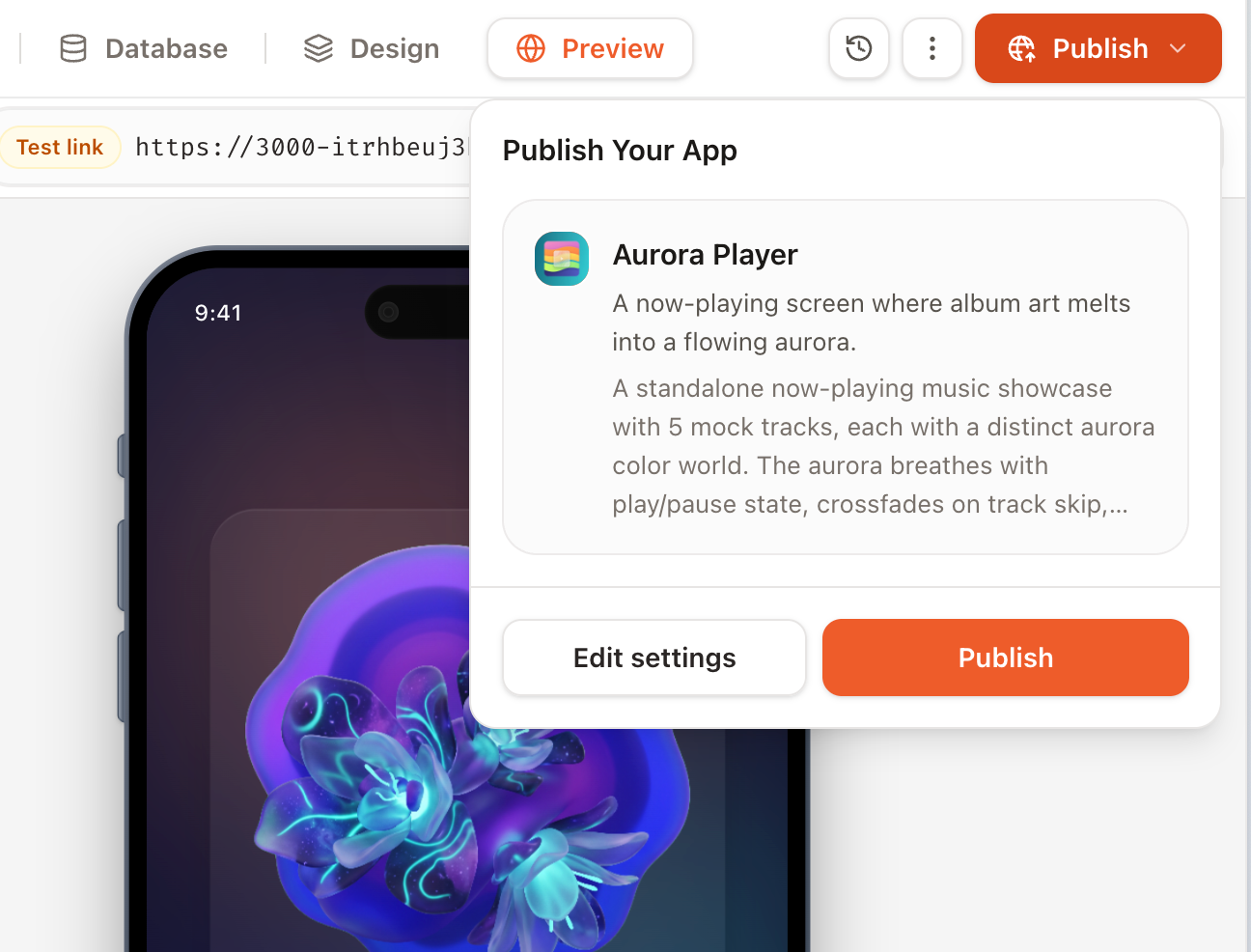
Enter App information, choose visibility, and review the preview. After submission, follow the deployment progress and result in the current conversation.
- Public: after approval, the App can appear in the Eazo community;
- Private: the App does not appear in the community, but anyone with its link can still open it.
Private does not mean visible only to the creator. Never expose passwords, keys, or other sensitive information directly in an App.
Production links and QR codes
After publishing, copy the production link or share the production QR code. Sandbox links may change with the environment and are only for creation and testing.
Update a published App
After making and testing changes, open Publish and click Update. The production address usually remains the same while its content changes to the new version. Updates to a public App may require another review.
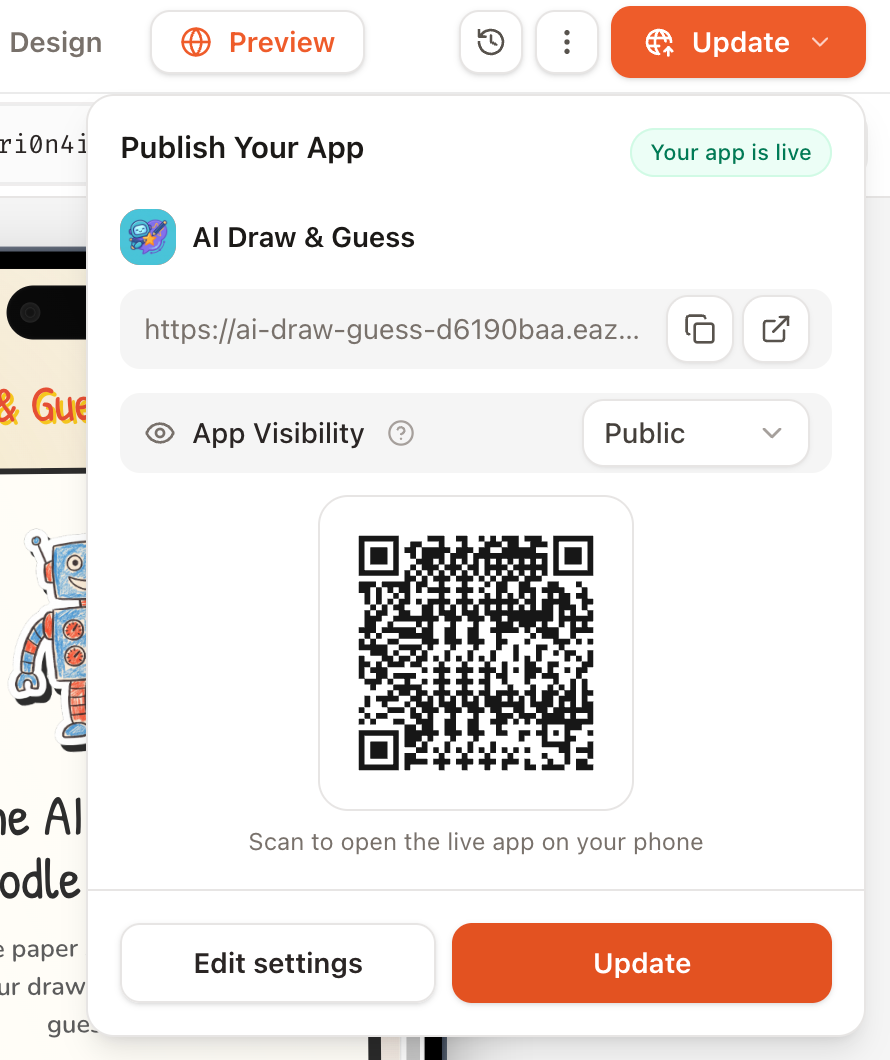
If Preview is current but production still shows old content, confirm that you submitted an Update.
View and restore previous versions
Open Deployments in Publish to review previous deployments and their timestamps.
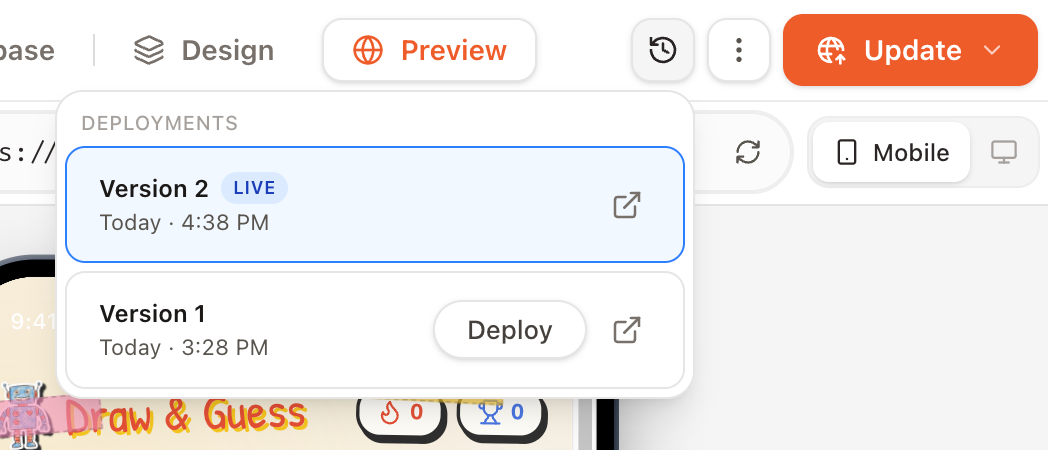
Deployments lists prior versions and times. You can open an old version, load its code, or make it the production version.
- Click the production-address icon to open that deployed version;
- Select a version with a code commit to load its code into the current sandbox, inspect it, and continue editing;
- To show an older deployment to visitors, make that deployment the production version.
Loading an old version replaces the current sandbox workspace. First wait for other Chats to finish and confirm that unpublished changes are no longer needed. To preserve current sandbox changes, update production before loading the old version. Merely opening an old deployment link does not change the Project.