Share a Chat and Manage Collaboration Access
The Share button in a V5 Chat opens two tabs: Share chat for read-only access to the current conversation, and Collaborate for viewing and editing the entire Project.
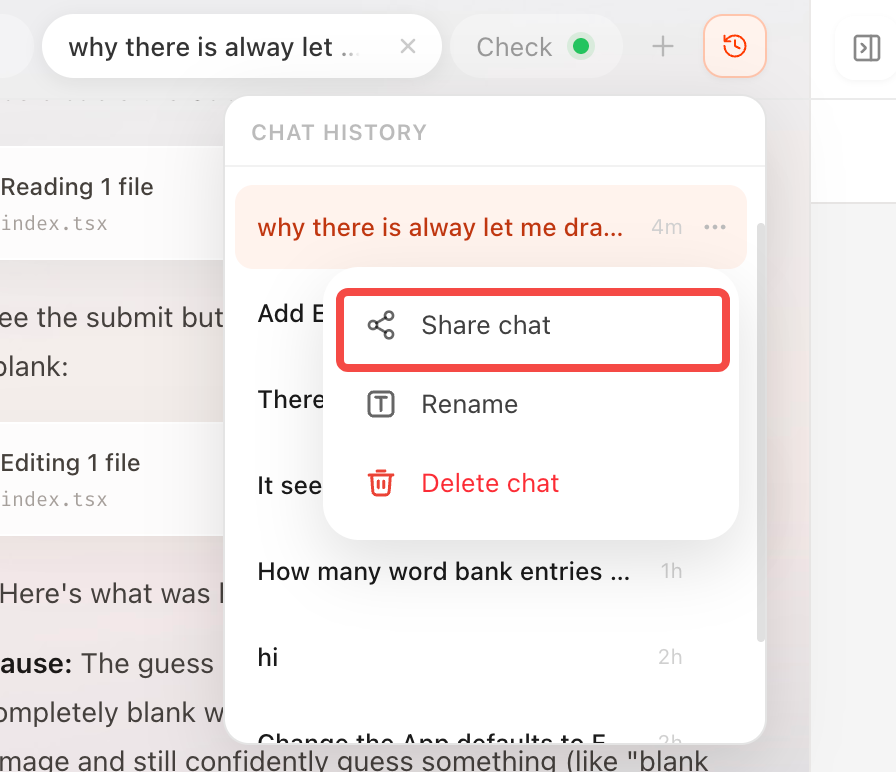
Share a Chat
- Open a Chat that contains at least one sent message;
- Click Share at the top of the conversation and select Share chat;
- Select Anyone with the link, then Copy link when it is ready. If the Chat is already public, copy the existing link;
- Send the link to the recipient.
While the V5 Chat is private, only the Share now action is shown. Copy link and the social sharing buttons appear after public access is enabled. Select Share now to switch to Anyone with the link and automatically copy the link once it is ready. Selecting Anyone with the link directly also copies the link automatically once it is ready. Use Copy link to copy it again. If copying fails, copy the displayed link manually. For a public V5 conversation, the Share window offers X, Reddit, Facebook, and LinkedIn. The sharing message uses the App name saved in App settings, followed by the short description and the first sentence of the App description (up to 120 characters, without repeating the short description). If there is no short description, it uses up to 240 characters of the App description. Text for X and Reddit is shortened to fit the sharing text budget, keeping the name and short description first. Otherwise, it uses a general creation message with the App name or conversation title. X opens a composer with the sharing message and link for you to review and publish. Reddit opens a post page with the title and link filled in so you can choose a community and publish. LinkedIn attempts to open a composer with the complete message and link prefilled, and copies them as a fallback if the platform does not fill them in. Facebook first copies the complete message and link, briefly shows “Message and link copied. Redirecting…” at the top of the page, then opens the sharing page after one second so you can paste them yourself. The notice disappears after two seconds. If copying fails, copy the content manually and select Open website. Copy link copies only the link. After Copy link, the button shows Link copied for two seconds. If copying or opening the website fails, copy the displayed content manually or select Open website to continue.
For V5 Chats, Anyone with the link lets visitors view the conversation and generated results without signing in or joining as members. Visitors cannot edit, run the Agent, or deploy the App. Each Chat keeps the same share link. Switching to Public access off immediately blocks public access; enabling public access again restores access through the same link. V5 sharing offers these two access settings. The App preview first tries the currently running version, then the published version, then the saved static preview if the earlier versions are unavailable. If none is available, the share page attempts to restore the runtime and start the App, showing a waiting state while it prepares. If recovery fails, click the preview refresh button to check again. Static previews and published versions show a short description below the preview toolbar.
Legacy Chats retain invitations and memberships: recipients join with read-only access after accepting an invitation. Visitors can request access for the owner to approve or deny. Owners can remove members, and members can leave the shared Chat.
Sharing the current Chat does not grant edit access to the entire Project. A Chat may contain requirements, screenshots, and generated results, so check for information that should not be exposed. Never retain passwords, API Keys, or environment-variable values in Chat.
Copy the public link as soon as it is created. Content is prepared in the background. Visitors see a waiting screen that checks automatically until the content is ready, with a reload option after a longer wait. Turning public access off immediately disables the public link. Project collaborators still have access.
Invite Collaborators
The owner can select Collaborate in the Share window, enter an email address, and select Invite. After confirmation, send an invitation email or copy the invitation link. Once accepted, the recipient can view and edit all conversations in the Project.
Owners can view members and pending invitations, remove members, and cancel invitations. Collaborators can only view the member list; they cannot invite or remove members. Invitation links and public share links serve different purposes: disabling public access does not remove collaborators, and removing a collaborator does not disable the public link.
Sharing options are unavailable until the settings are confirmed. Close and reopen Share to load the current status. The window shows guidance for sign-in, service, or connection issues.