Verify a Built App
After the App build finishes, verify the main flow before polishing visual details and publishing. Recheck affected pages after every significant set of changes.
Preview always shows the current sandbox version, independently of the deployed production version. Test directly in Creator or copy the test link to another device. Test links and QR codes are only for creation and may change with the sandbox; do not use them for public sharing. Preview changes do not update production automatically. After testing, open Publish and click Update to release the new version. To view production, open its address from Publish or scan the production QR code with Eazo Mobile.
Check phone and desktop views
Switch between phone and desktop in Preview. On phone, check buttons, text, forms, bottom navigation, dialogs, and scrolling. On desktop, check content width, tables, sidebars, dropdowns, and multi-column layouts.
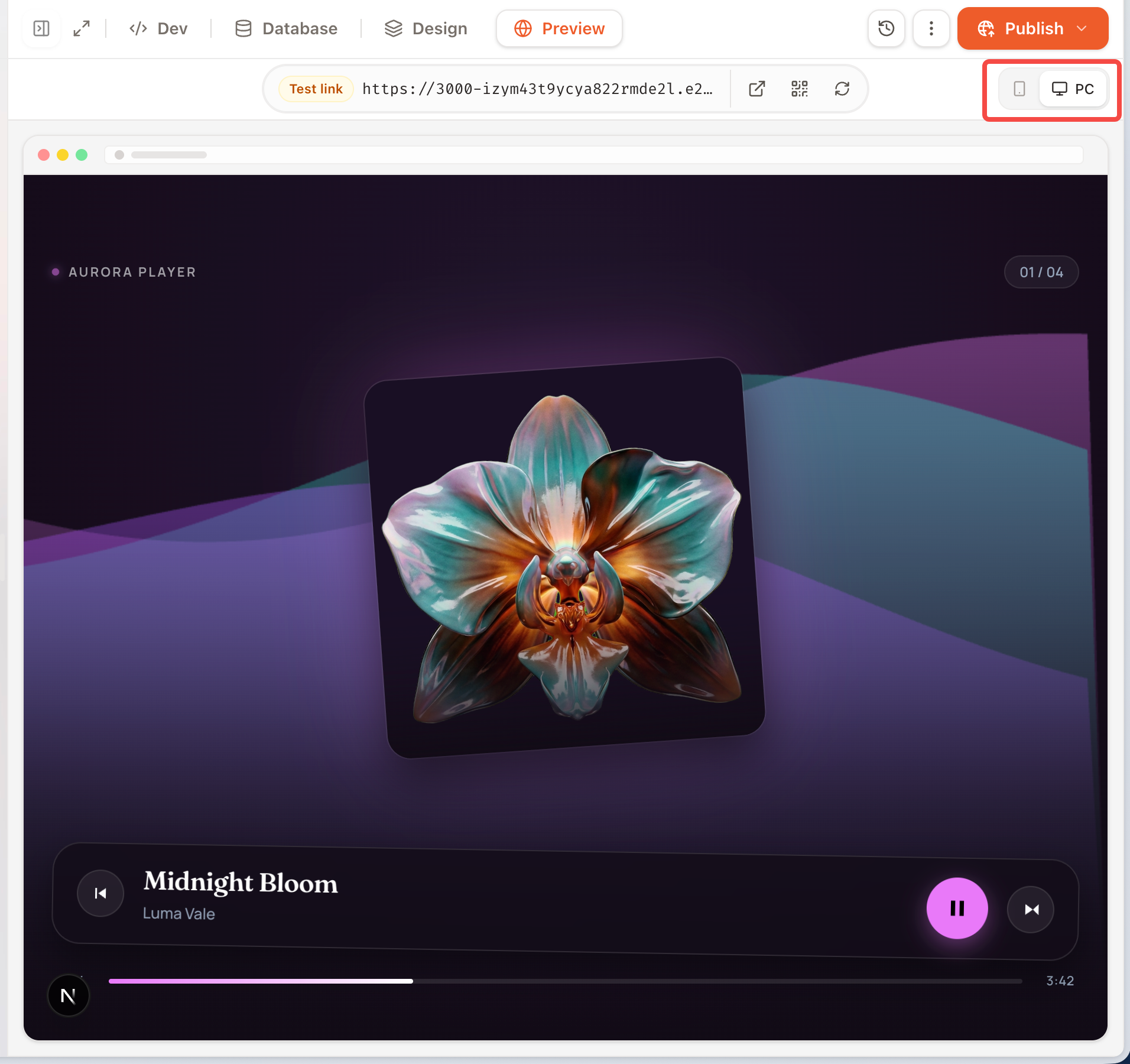
Switch between phone and desktop views in Preview to verify the core flow and responsive layout.
For a specific interface problem, click Comment in Preview and select the element. Describe end-to-end or multi-page changes in Chat.
Test on a physical device with Eazo Mobile
Expand the QR code card in phone Preview and scan it to open the current sandbox build on your phone. Check touch interaction, inputs, scrolling, safe areas, and capabilities that run inside Eazo Mobile, such as sign-in, community sharing, and system reminders.
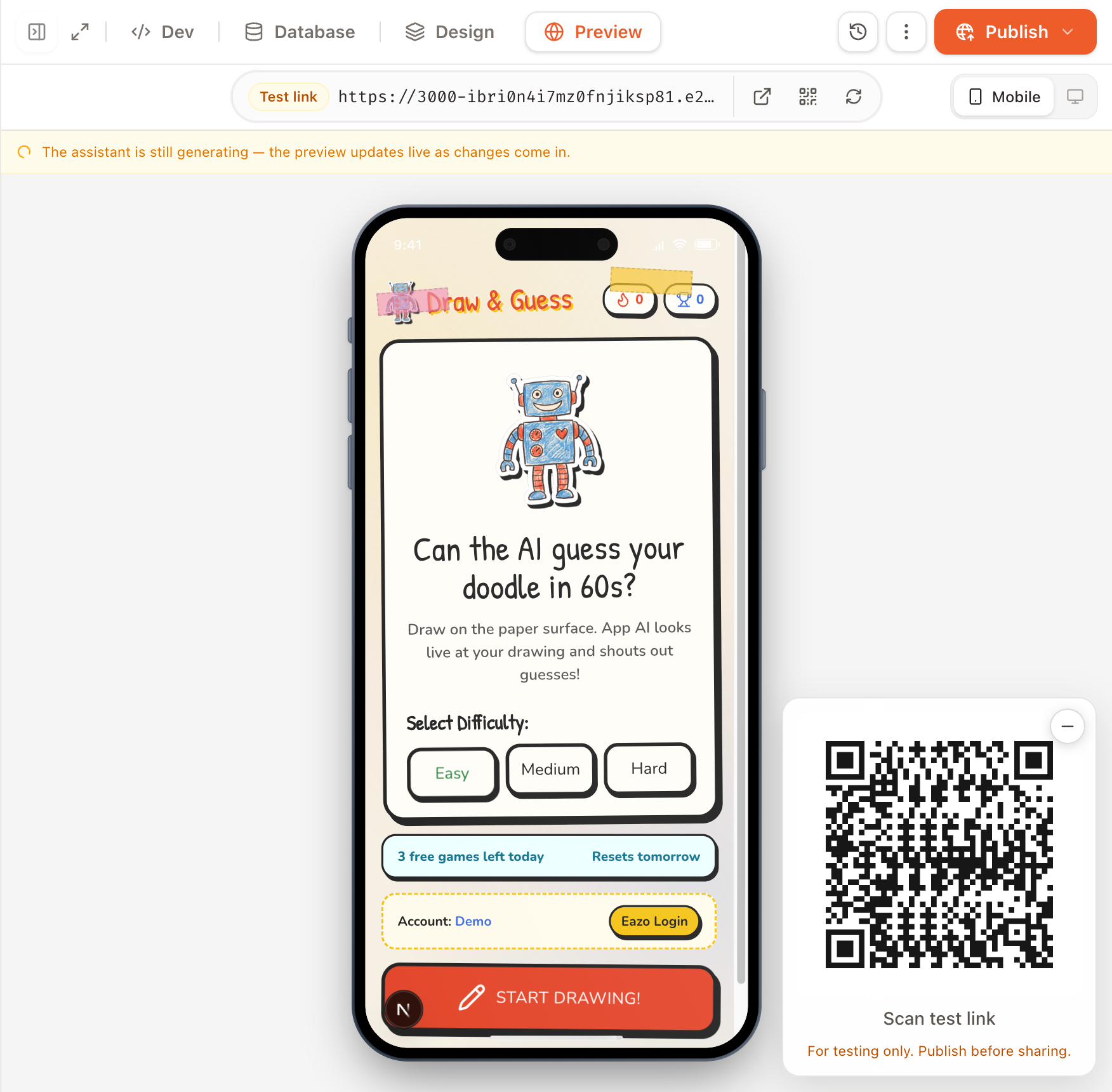
Expand the QR card in phone Preview and scan it to open the current sandbox build in Eazo Mobile.
When Preview does not open correctly
If Preview is blank, keeps loading, or does not show the latest change, refresh it first. If the sandbox must be restarted or rebuilt, see Troubleshooting and support.