Manage a Subscription: Upgrade, Downgrade, Cancel, and Resume
Open More > Settings > Plan to review your current plan, subscription state, monthly price, and next renewal date, or to upgrade, downgrade, or cancel. You can also hover over or click the account area at the bottom of the sidebar, then choose Manage subscription from the account card. Free users see the upgrade entry point there.
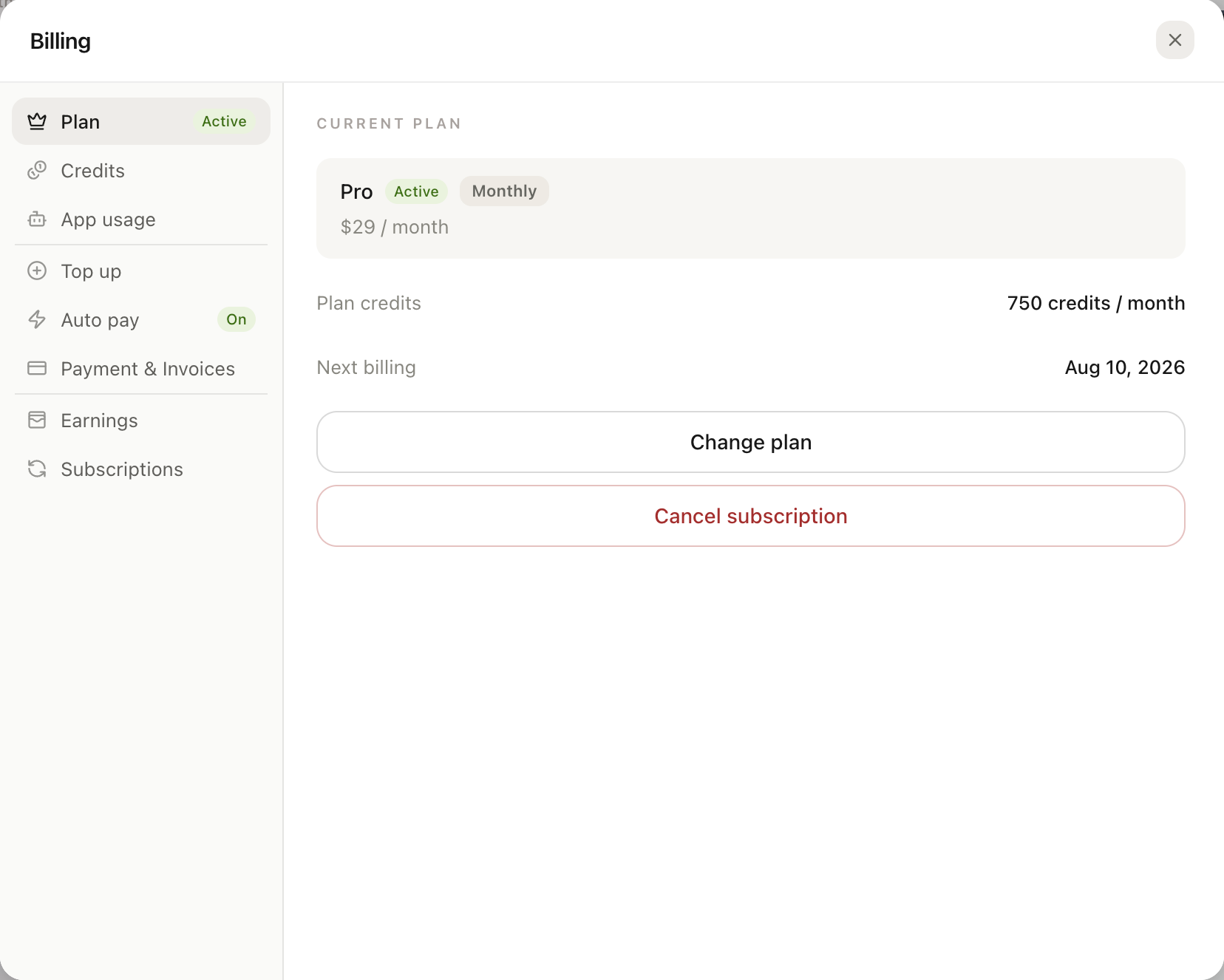
Plan shows the current plan, state, monthly price, and renewal date, with upgrade, downgrade, and cancellation actions.
Subscriptions renew automatically by billing period. Upgrade, downgrade, and cancellation take effect at different times; follow the confirmation dialog and displayed subscription state.
Upgrade: effective immediately
An upgrade takes effect immediately and resets the billing period. After payment, paid features unlock at once, the new period starts that day, and the next renewal date moves accordingly.
Credits are added, not replaced. The new plan's monthly Credits are added to your current balance, while promotional and separately purchased Credits remain. The confirmation page shows the amount due and new renewal date.
Downgrade: effective next billing period
A downgrade from Ultra to Pro takes effect at the next period. You retain all current-plan features and Credits until then. At the new period, the plan changes and monthly Credits are granted according to the new plan. Separately purchased Credits remain until their expiration.
You can cancel a pending downgrade before its effective date by returning to subscription management and selecting the current plan again.
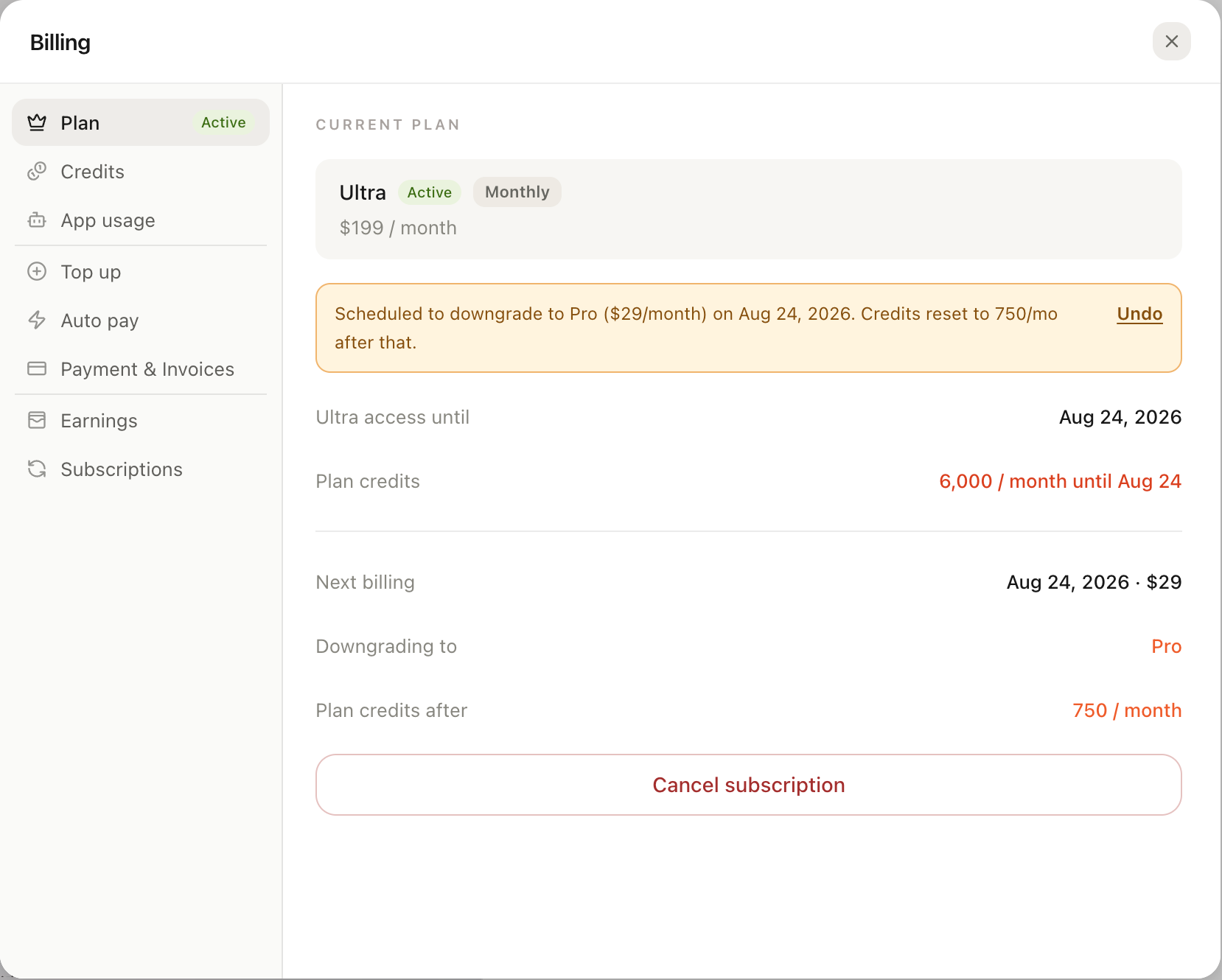
A downgrade applies at the next billing period. Current benefits and Credits remain until then, and the downgrade can be canceled beforehand.
Cancel: return to Free at expiration
To stop the subscription and return to Free, click Cancel subscription in Plan and complete the second confirmation. Benefits do not end immediately:
- Current-plan benefits and Credits remain through the billing period;
- At the end, the account becomes Free and stops renewing;
- Plan shows Resume subscription after cancellation. Click it before expiration to keep the current plan and renewal.
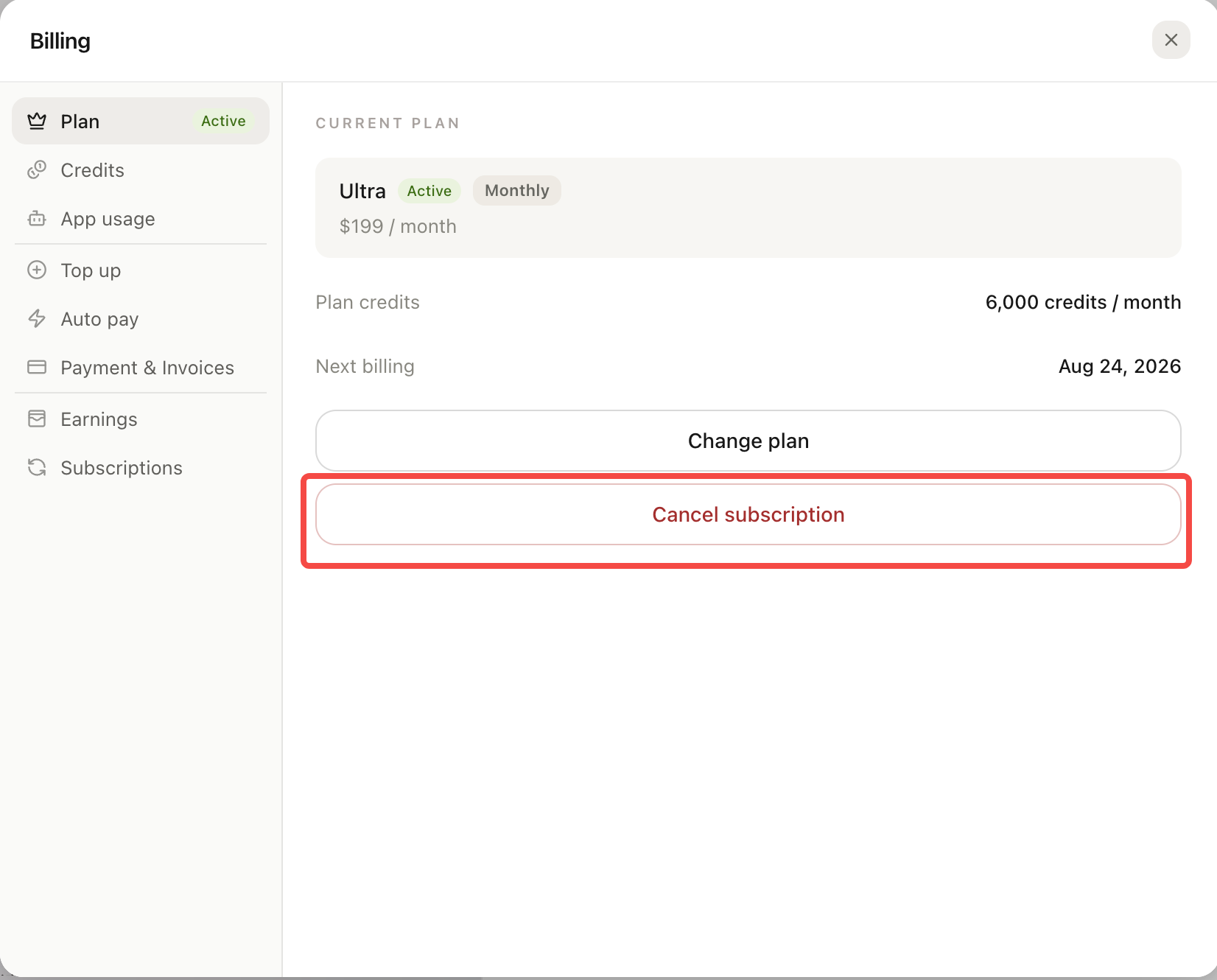
Cancellation preserves benefits through the current period and returns to Free at expiration. Resume before expiration to undo it.
Downgrading and canceling do not refund subscription fees already paid.
Failed renewal
If an automatic renewal payment fails, the system asks you to update the payment method; see Payment methods and invoices. The subscription may pause or lose benefits and automatically falls back to Free after the failed renewal. Update the payment method and complete payment to restore it.
Credits after downgrade or cancellation
- Plan Credits expire at the end of their billing period and are not rolled over or refunded;
- Separately purchased Credits remain through their validity period and continue to be consumed by expiration order.
Monthly and annual billing
When annual billing is available, it usually costs less than monthly billing, while plan Credits are still issued monthly rather than all at once.
- Monthly can switch to annual. A same-tier switch normally begins when the current monthly period ends without an early charge; an upgrade to a higher annual tier normally takes effect immediately;
- Annual currently cannot switch directly to monthly. Cancel annual, wait until it expires and the account becomes Free, then subscribe monthly;
- Billing-cycle changes follow the same rules: upgrades take effect immediately and reset the period, while downgrades begin at expiration, with the same Credits behavior.
Follow the current Plan page and confirmation dialog for prices, discounts, and available billing periods.