Modify an App
Fix a result you do not like
In your feedback, identify the page, location, problem, desired result, and anything that must remain unchanged:
The home-page header is too tall, so today's tasks are below the fold on a phone. Keep the colors and bottom navigation, reduce the header height, and move today's tasks higher.
When using a screenshot or link, explain which parts are relevant. Group related changes in one request and split unrelated large tasks.
In addition to describing changes in Chat, you can select an interface element directly. Click Comment in App Preview, select an element in the running App, and describe the change.
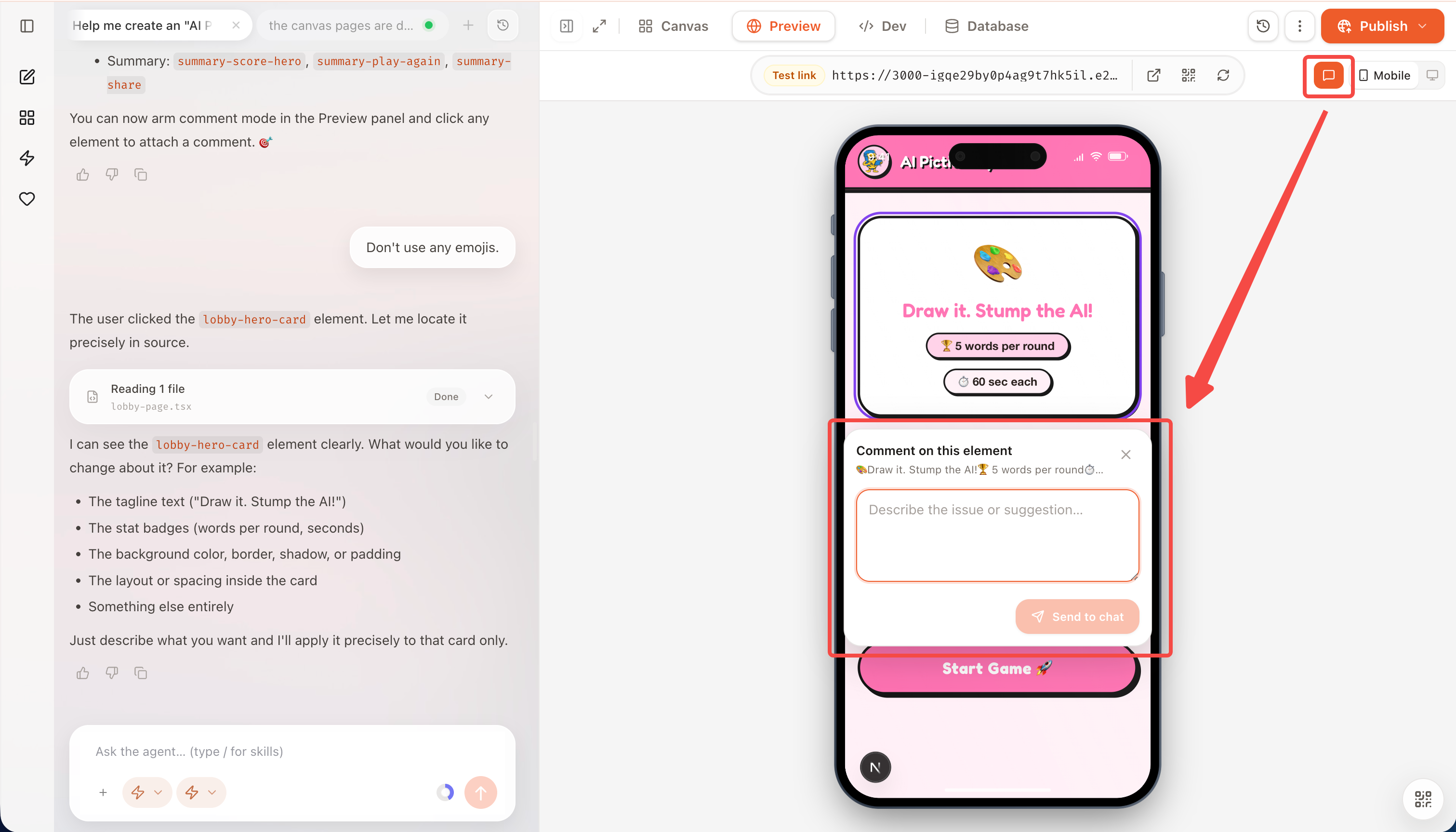
The selection includes the current page and element position, which works well for requests such as “reduce this heading,” “change this button label,” or “adjust the spacing in this area.” You can submit multiple Comments; AI processes them in order. Wait for the relevant work to finish before reviewing the newest Design or App Preview.
Iterate in this order when possible:
- Product scope and page structure;
- Core functionality and interaction;
- Mobile behavior and error states;
- Visual details and copy.
Keep modifying the current App when its core audience and purpose are unchanged. Create a new App when the audience, core purpose, and most pages need to be redesigned.
Send a new request or stop work
While the Agent is running, enter a new request and press Enter or click Send to interrupt the current task and send the new request immediately. To end the current work without sending another request, clear the composer and click Stop.
Stopping does not undo generated content. When you return to the same Chat, Eazo attempts to restore the saved state.
Use multiple Chats in one Project
A Project can contain multiple Chats when:
- The App has entered the full App build stage or its build is complete; and
- You have edit permission for the Project.
When Chat tabs and a + appear at the top of the Project, you can create a new Chat. You can click + and work on something else even while another Chat is running.
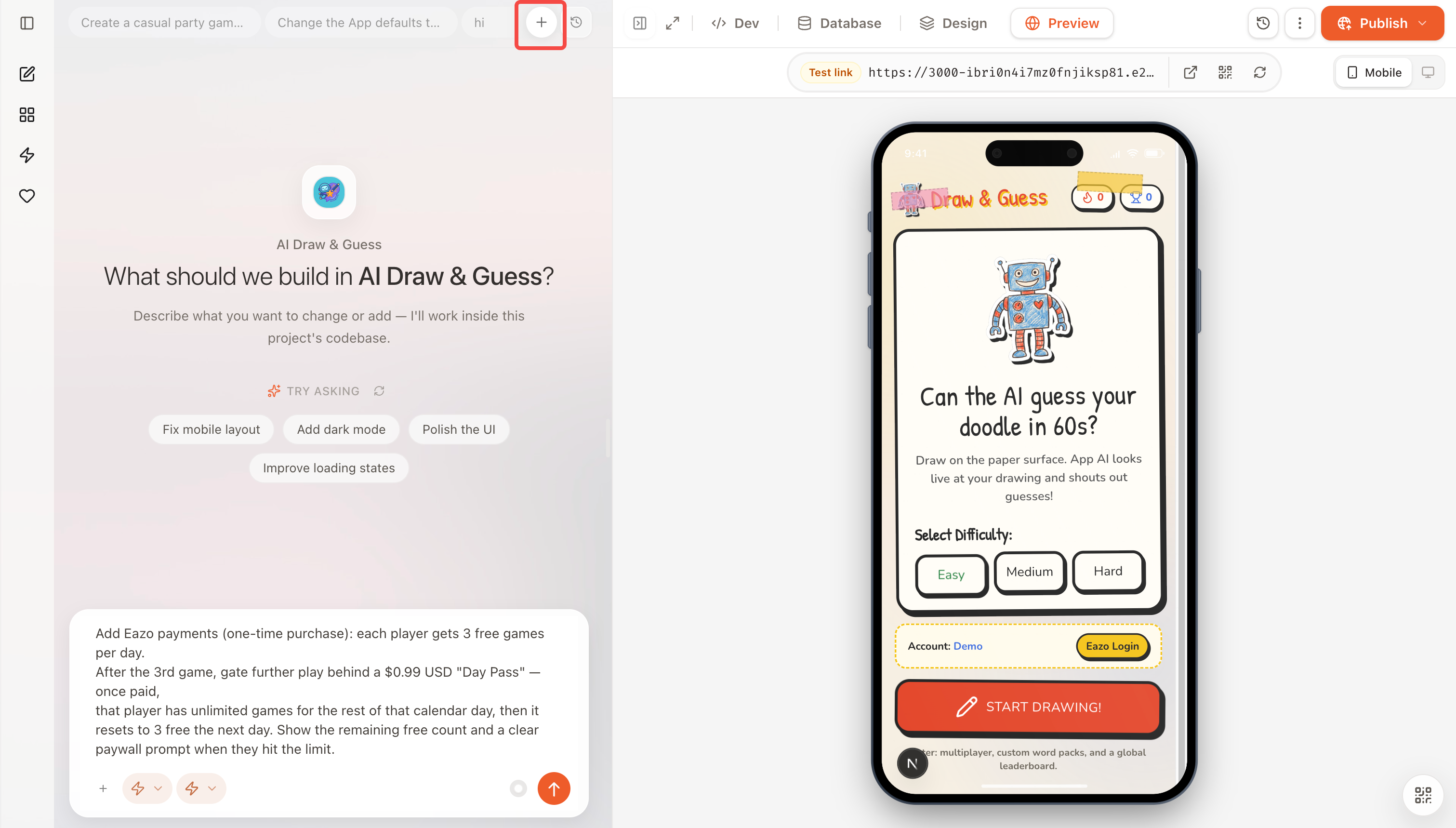
Use the Chat tabs and + to run multiple Chats within one Project.
The + is unavailable during the initial conversation, before the Project is ready, or while viewing someone else's shared content with read-only access.
Click +, enter a task, and send it to start a new Chat in the current Project. Reopen older Chats from Chat history.
Create a new Chat when:
- The task is relatively independent, such as handling sign-in separately from data display;
- You need parallel research on different questions;
- The current Chat is long and near its context limit;
- You want to isolate troubleshooting or exploration from the main Chat.
Continue the current Chat when:
- The new request depends on a decision just discussed;
- You are adjusting details of the current task;
- The Agent needs images, files, or instructions from the current conversation.
All Chats modify the same App but do not automatically share complete transcripts. When work depends on another Chat's decisions—or continues after reaching a context limit—summarize the goals and decisions that still apply, or ask the Agent to inspect the current App state.
Avoid having multiple Chats modify the same page, configuration file, or data structure at once. Before publishing, wait for related Chats to finish and test the final Project as a whole.
Closing a Chat tab removes it from the current tab bar without deleting its history. Reopen it from the history icon in the upper-right corner of Chat.