Generate a Multi-Page Prototype
To review page structure and the core flow before building, ask Eazo in Chat for a multi-page interactive prototype. Describe the pages, how the main buttons should navigate, and any design to use as a reference. For example:
Use the chosen design to prototype the welcome, drawing, guess result, and score summary screens. Connect the main navigation buttons. Do not build the complete App yet.
Open the prototype canvas
After generation, click Open on the prototype result card to view the canvas in Prototype. The canvas can show multiple pages together and supports zoom and fullscreen viewing.
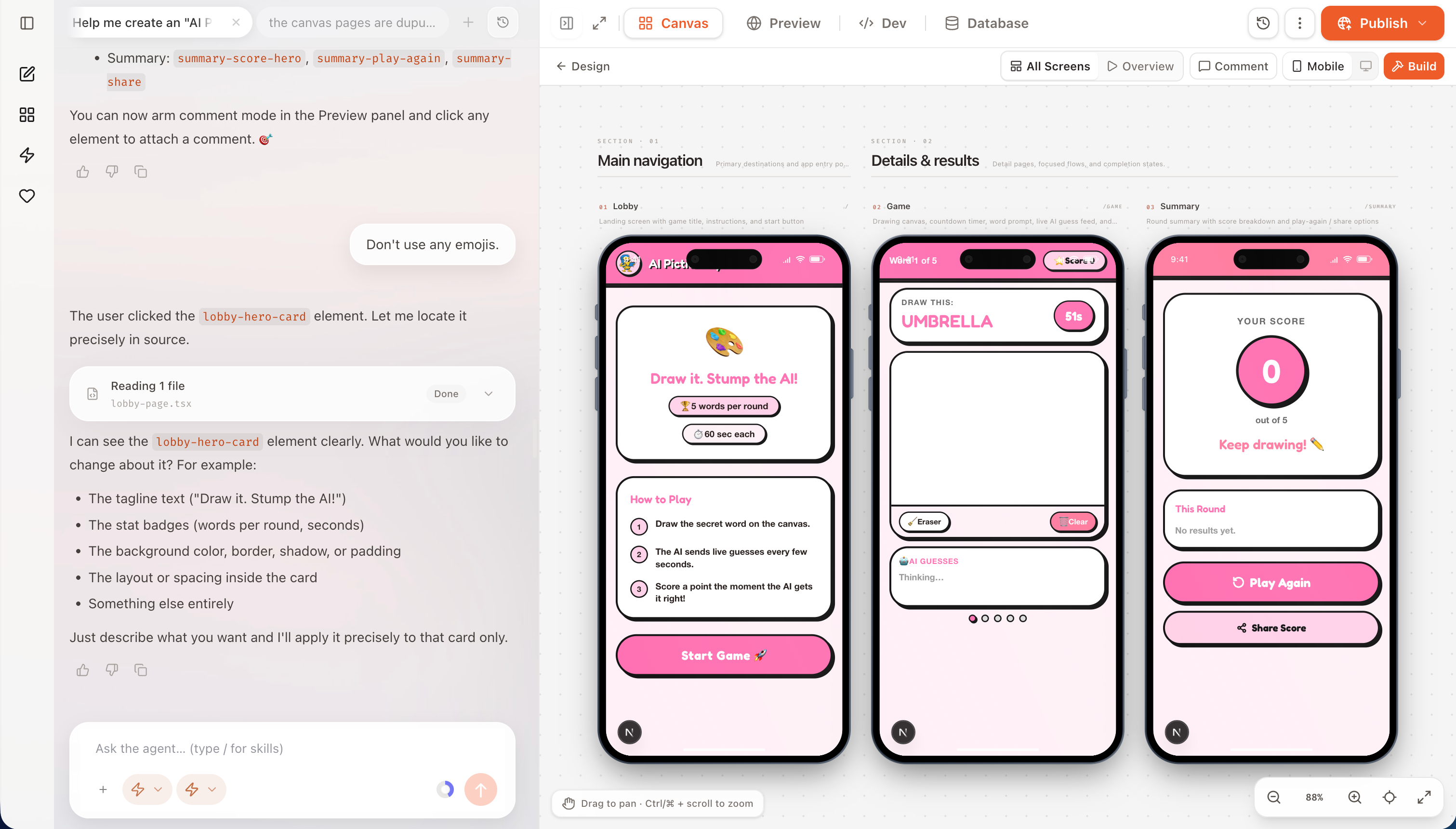
Use the Prototype canvas to check that pages are complete, visually consistent, and organized clearly.
Check flows and request changes
Turn off element selection to try the buttons and links that have been set up between pages. Check that common entry points are easy to find, return paths are clear, and the core journey feels continuous.
To request changes, turn on element selection and select a page element, or describe the page, location, and goal directly in Chat. For a different overall style, explain what to keep and change, or provide another design direction as a reference.
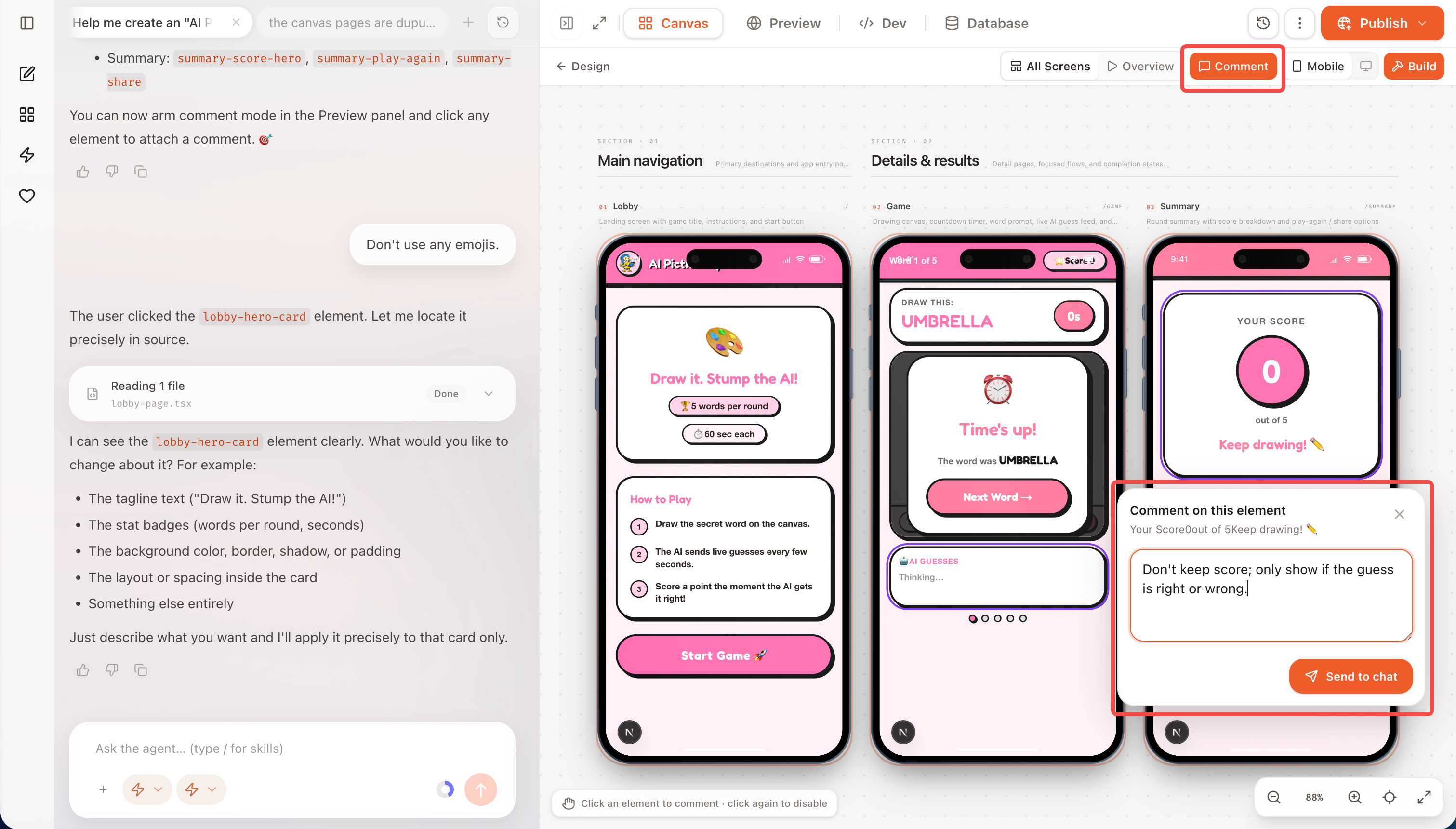
Turn on element selection, select an element, and describe the change.
Continue with the complete build
A prototype helps you review frontend pages and interactions. It does not mean that sign-in, saved data, or external services are already functional.
When the pages and flow look right, wait for the related changes to finish, then ask in Chat: “Build the complete App from this prototype.” See Build the Complete App for the capabilities and configuration involved.