Create, Join, and Manage App Groups
Platforms: iOS and Android
Last updated: August 11, 2026
An App group is a group chat built around one or more Apps. Members can discuss how to use them, share results, open linked work, and continue with Remix.
Create a group from Messages
- Open Messages.
- Tap the group menu in the top-right corner.
- Choose Create Group.
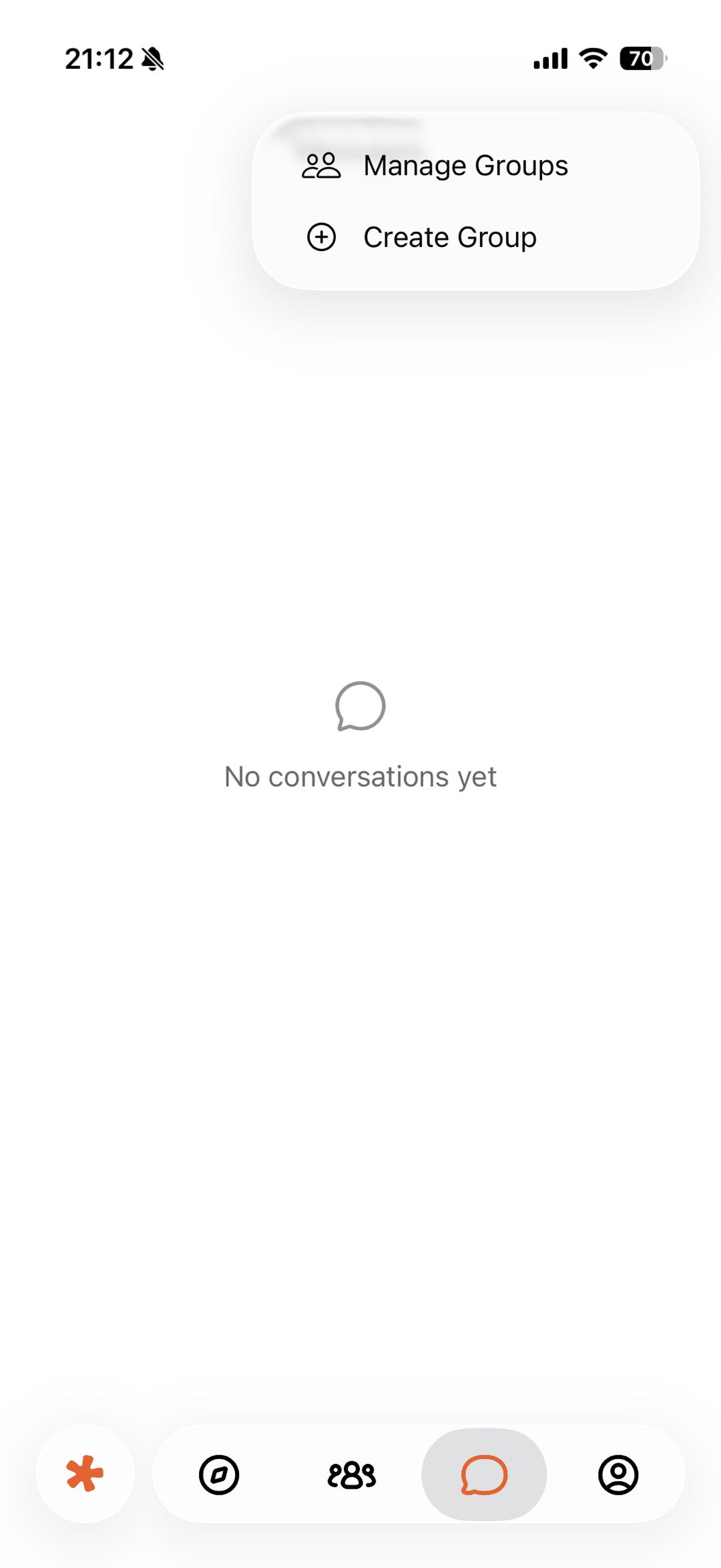
Figure 1: Open Manage Groups or Create Group from the Messages group menu.
- Enter a group name and description.
- Add a welcome message if needed.
- Choose an App to link.
- Invite other users.
- Review the details and tap Create.
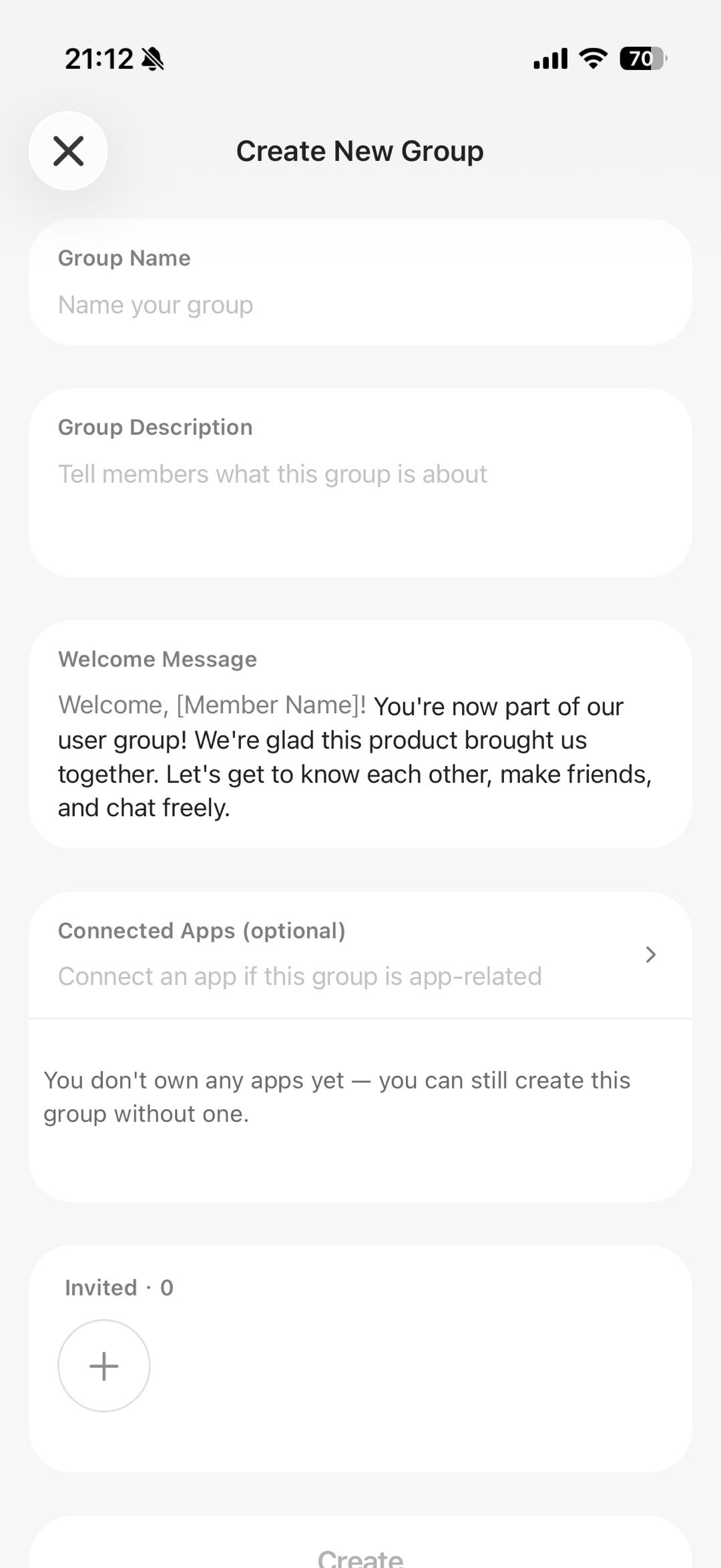
Figure 2: Enter group details, link an App, and invite members.
If you do not own an App, the page may allow you to create a general group without a linked App. Follow the current interface.
Create a group from your App
- Open an App you own or can manage.
- Open the More menu.
- Choose Create Group.
- Check the preselected App and complete the group details.
Only the owner or someone with the required permission may see this entry.
Join a group
You may join by:
- Choosing Join Group from an App’s More menu.
- Opening a group invitation sent by another user.
- Going to
Messages → Manage Groups → Joined.
Accept or decline an invitation after checking the group name, linked App, and members.
Manage a group
In the group chat, tap the name at the top to open Group Info. Depending on current permissions, an owner can invite members, add or remove linked Apps, edit group information, and manage members or settings. Regular members can view group information, open linked Apps, or leave the group.