Manage Profile and Creator Center
Platforms: iOS and Android
Last updated: August 18, 2026
What is in Profile
Profile may include:
- Avatar, name, and bio.
- Following, Followers, and Posts.
- Apps, Posts, and Liked.
- Membership and Credits information.
- Creator Center.
- Account settings.
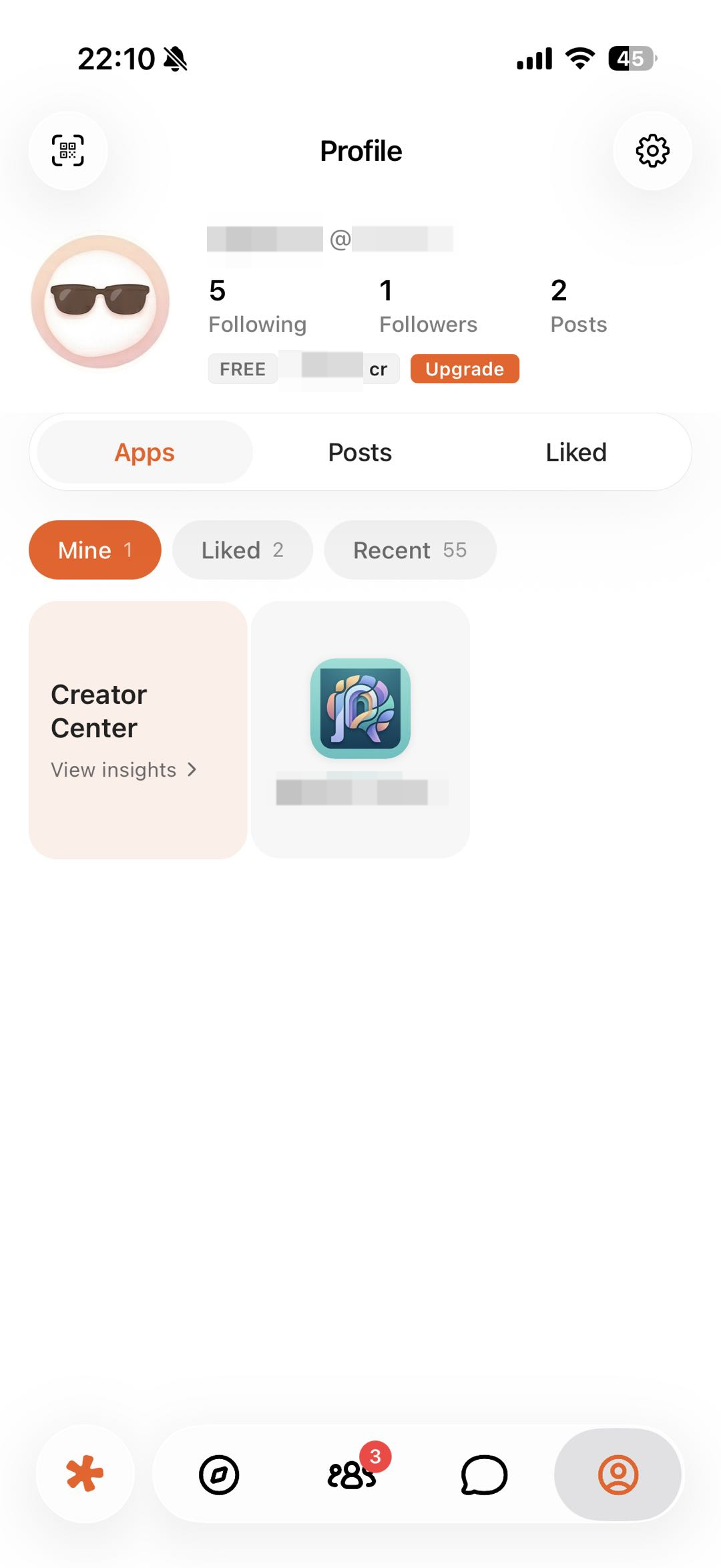
Figure 1: View your Apps, recent activity, and Creator Center from Profile. Account details in the screenshot are obscured.
Edit your profile
- Open Profile.
- Open Settings or Edit Profile.
- Change your avatar, name, or bio.
- Save, then return to Profile to verify.
Do not put your home address, ID number, private phone number, or other sensitive details in a public bio.
Open the Help Center from Settings
- Open Profile.
- Open Settings.
- Tap Help Center.
The Help Center remembers your most recently selected product and language. To view the mobile guides, choose Eazo App from the product switcher in the upper-left corner.
Find your content
- Posts: Community content you published.
- Mine: Apps you own or published.
- Recent: Apps you opened recently.
- Liked (Profile tab): posts or comments you liked.
- Liked (inside Apps): Apps you liked or saved.
To keep an App for later, use the like or save entry on its page, then find it in Profile → Apps → Liked.
Creator Center
Path:
- Open Profile.
- Open Apps.
- Choose Mine.
- Tap Creator Center.
Creator Center may show Overview, Apps, and any available Earnings information. Statistics can be delayed. Metrics, revenue sources, percentages, settlement, refunds, and withdrawal terms are governed by the current page and relevant agreements.